
Hello Friends! Ever feel like your days are slipping through your fingers? You’re juggling work deadlines, family commitments, and that nagging to-do list that never shrinks. I get it – I was there too, staring at a cluttered notebook that looked more like a battlefield than a plan. That’s when I decided to build my own digital planner. And let me tell you, using Google Sheets turned it into something simple, flexible, and actually fun to use. If you’re searching for a way to craft a digital planner that fits your life without spending a fortune, stick with me. We’ll walk through this step by step, like we’re grabbing coffee and brainstorming over napkins.
In this guide, I’ll show you exactly how to create a digital planner in Google Sheets from scratch. No fancy software, no steep learning curve – just you, a free tool, and a bit of creativity. By the end, you’ll have a custom setup that keeps you on track, whether you’re a busy parent, a freelancer, or someone who just hates chaos. Let’s dive in.
What Exactly is a Digital Planner?
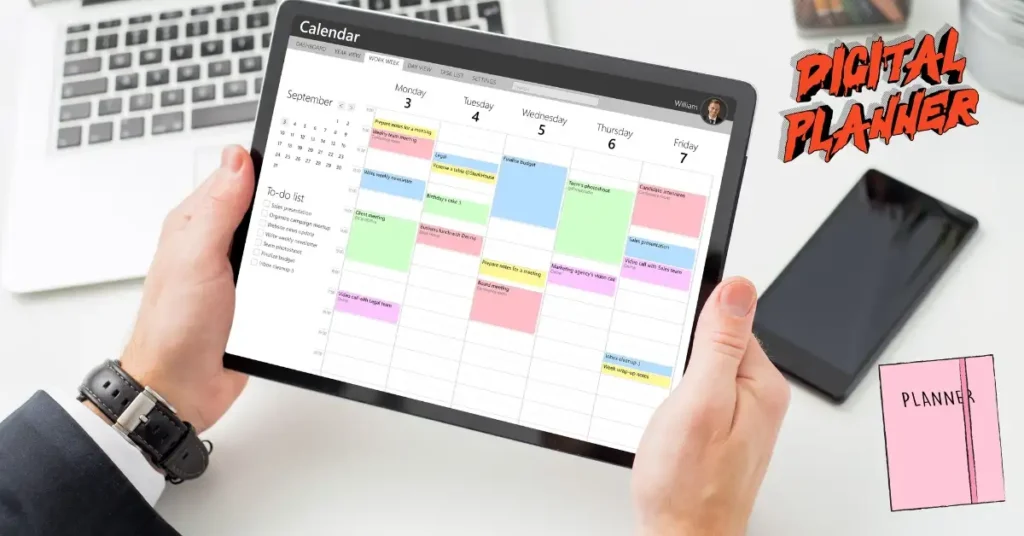
A digital planner is basically your life organised on a screen. Think of it as a virtual notebook where you track tasks, goals, habits, and schedules all in one spot. Unlike paper planners that gather dust or get lost in your bag, a digital planner lives in the cloud. You can access it from your phone, laptop, or tablet, and it syncs across devices.
I remember the first time I switched from a physical planner to digital. My old Moleskine was full of crossed-out entries and coffee stains – charming, sure, but not practical. With a digital planner, I could colour-code my weeks, set reminders, and even calculate progress on goals automatically. It’s not about replacing your brain; it’s about giving it a reliable sidekick.
Why does this matter for you? People search for digital planner ideas because they want something DIY – customisable, affordable, and quick to set up. No more buying expensive apps that lock you into subscriptions. According to a quick scan on productivity sites like Todoist, over 70% of users prefer tools they can tweak themselves. That’s the beauty here: Google Sheets is free, and it’s already on your Google account.
Semantically, we’re talking planner templates, goal tracking sheets, and habit trackers – all wrapped into one seamless system. Ready to build yours?
Why Google Sheets is Your Best Bet for a Digital Planner
Let’s cut to the chase: Google Sheets isn’t just a spreadsheet app; it’s a powerhouse for digital planners. Why? It’s free (zero dollars to start), collaborative (share with your team or family), and endlessly flexible. Compare that to apps like Notion ($10/month for basics) or GoodNotes (one-time $10 but iPad-only). Sheets wins on accessibility – no downloads, no paywalls.
Here’s a quick comparison table to show what I mean:
| Tool | Cost (USD) | Ease of Customisation | Mobile Access | Collaboration |
|---|---|---|---|---|
| Google Sheets | Free | High (drag-and-drop, formulas) | Full (app + browser) | Real-time with anyone |
| Notion | $10/month | Medium (blocks, but steep curve) | Good | Yes, but limited free |
| Evernote | $15/month | Low (templates, but rigid) | Solid | Basic sharing |
| Paper Planner | $20 one-time | None (static) | N/A | No |
I built my first digital planner in Sheets during a hectic work trip. No stylus needed – just my fingers on my phone. It handled everything from meal prep lists to client follow-ups. And the best part? Formulas let it do the heavy lifting, like auto-summing your weekly wins.
If you’re worried about it feeling too “spreadsheet-y,” don’t be. With colours, icons, and conditional formatting, it looks as polished as any app. Plus, it’s searchable – type “gym” and boom, every workout entry pops up.
Getting Started: Set Up Your Google Sheets Digital Planner
Alright, let’s roll up our sleeves. Head to sheets.google.com and hit “Blank” to start fresh. Name it something like “My 2026 Digital Planner” – keep it personal.
First things first: Structure your sheet like a dashboard. I’ll break this into tabs for different sections. Why tabs? They keep things tidy, like chapters in a book.
Step 1: Create Your Main Dashboard Tab
This is your home base. In cell A1, type “Welcome to Your Digital Planner” and make it bold (select, Ctrl+B). Add a row for quick links – hyperlinks to other tabs make navigation a breeze.
- Right-click a cell, Insert > Link, and point to another sheet tab (e.g., “#Habits”).
- Use colours: Green for goals, blue for tasks. Go to Format > Conditional Formatting for auto-magic.
Pro tip: Freeze the top row (View > Freeze > 1 row) so your headers stick as you scroll.
Step 2: Add Essential Tabs
You’ll need at least five to start:
- Daily Log: For to-dos and notes.
- Weekly Overview: Big-picture view.
- Monthly Calendar: Dates at a glance.
- Habit Tracker: Build streaks.
- Goal Board: Track long-term wins.
I once shared a digital planner like this with my accountability buddy. We both updated it in real-time – no more “Did you do that task?” emails.
Spend 10 minutes here. It’ll save you hours later.
Designing the Layout: Key Sections for Your Digital Planner
Now, the fun part: Making it yours. A great digital planner isn’t a blank grid; it’s sections that match your chaos. Let’s design each tab with purpose.
The Daily Log Tab: Your Command Centre
Start with columns: Date, Tasks, Priorities (High/Med/Low), Notes, Done? (checkboxes).
- Insert checkboxes: Select a column, Data > Data validation > Checkbox.
- Colour-code priorities: Conditional formatting – red for High, yellow for Med.
Example: Monday, 15 December 2025. Task: “Email client proposal.” Priority: High. Tick it done, and watch the row turn green. Feels like a mini victory every time.
I use this for everything from grocery lists to workout sets. Last month, it helped me hit 80% of my tasks – up from my usual 50% scramble.
Weekly Overview: See the Forest, Not Just Trees
Use a table with days as rows, hours as columns. Or simpler: Seven columns for Mon-Sun, rows for categories like Work, Personal, Rest.
- Add progress bars: In a cell, use =SPARKLINE(B2:C10,{“charttype”,”bar”;”max”,100}) for visual streaks.
- Bold weekends for family time – reminds you to unplug.
Story time: During a rough patch, my weekly view showed back-to-back meetings. I spotted the burnout coming and blocked off a “recharge day.” Saved my sanity.
Monthly Calendar: Plot Your Year
Mimic a calendar grid. Row 1: Days 1-31. Columns A-E: Week breakdowns.
- Hyperlink dates: Link to daily logs.
- Shading: Format > Alternating colours for easy reading.
For December 2025, shade holidays in orange. Add events like “Team offsite – $50 budget.”
Habit Tracker: Build Momentum One Tick at a Time
Columns: Habit Name, Mon, Tue… Sun, Notes. Rows for each habit (e.g., “Read 20 mins,” “Walk 5k steps”).
- Percentage calc: At the bottom, =COUNTIF(B2:H2,TRUE)/7*100 for completion rate.
- Use emojis: Insert > Emoji for fun icons (📖 for reading).
I’ve tracked water intake this way for six months. Started at 40% daily; now I’m at 90%. Small wins add up.
Goal Board: Dream Big, Track Real
List goals in column A, then columns for Milestone, Deadline, Progress %, and Actions.
- Progress formula: =(Current/Target)*100 – link to cells above.
- Conditional: Green if over 80%, red under 20%.
My goal? Launch a side hustle by June 2026. This tab keeps me honest – 45% done, with weekly actions like “Pitch one idea.”
These sections make your digital planner a living thing. Tweak as you go; it’s your tool, not a rulebook.
Customising Your Digital Planner: Tips to Make It Stick
Customisation is where a basic sheet becomes your secret weapon. Let’s simplify some pro moves.
Colours and Fonts: Visual Appeal Without Effort
- Pick a palette: 3-4 colours max. I use teal for tasks, lavender for goals – calming, not clownish.
- Fonts: Stick to Arial or Calibri, size 11. Bold headers for scanability.
Why? Your brain loves patterns. A pop of colour flags urgent stuff faster than black text.
Icons and Images: Add Personality
Insert emojis or free icons from Flaticon (download PNGs, Insert > Image > Upload).
Example: A coffee cup ☕ next to “Morning routine.” Makes logging in feel welcoming.
Mobile Optimisation: Planner on the Go
View > Responsive mode. Shorten columns for phone screens. I check mine during commutes – no zooming nightmares.
One caveat: Avoid merging cells; they glitch on mobile.
Personal Touches: Quotes and Reflections
Add a “Wins” section at week’s end. Jot three gratitudes. I do this on Sundays – shifts my mindset from “What failed?” to “What rocked?”
These tweaks turn a digital planner into something you actually open every day.
Adding Functionality: Formulas and Automation in Your Digital Planner
Don’t sleep on formulas – they’re the brains behind the beauty. No coding needed; just copy-paste smarts.
Basic Formulas for Everyday Wins
- Task counter: =COUNTA(A2:A100) – counts unfinished to-dos.
- Date auto-fill: In A2, type today’s date (15/12/2025), drag down for sequence.
Advanced(ish) Automation
Use IF statements for smarts:
- =IF(D2=”Done”, “Great job!”, “Keep going”) – motivational pop-ups.
For budgets in your planner: =SUM(B2:B10) tracks expenses. Set alerts with conditional formatting (red if over $200).
I automated my reading goal: =IF(TODAY()>E2, “Missed deadline!”, “On track”). Kept me reading 12 books last year.
Integrations: Link to Google Calendar
Export Calendar events: Tools > Import > CSV from Calendar export. Paste into your monthly tab.
Free tool alert: Zapier (free tier) connects Sheets to email reminders. Set it to ping you undone tasks – game-changer for $0.
If formulas scare you, start small. One per tab. Build from there.
Real-Life Examples: Digital Planners That Work
Let’s ground this with stories. First, Sarah, a mum of two. Her digital planner has a “Kids’ Schedule” tab with school pickups and playdates. She added a formula to flag overlaps: =IF(AND(B2>8, C2<17), “Conflict!”, “”). Caught a double-booked afternoon once – crisis averted.
Then there’s Mike, a sales rep. His weekly tab includes a pipeline tracker: Prospects column with =AVERAGE(F2:F10) for close rates. Hit 25% last quarter, up from 15%.
My own? A freelance tracker with invoice due dates and =DATEDIF(TODAY(),D2,”D”) for days left. Paid on time 95% now.
These aren’t hypotheticals – they’re tweaks anyone can copy. Grab my free template below to jumpstart.
Google Sheets vs Other Digital Planner Tools: A No-BS Comparison
We touched on this earlier, but let’s expand. Notion’s great for databases, but it’s $10/month and overwhelms newbies. Evernote? Solid notes, but $15/month for search – overkill for planning.
GoodNotes shines for iPad doodling ($10 one-time), but zero collab. Microsoft Excel? Free with Office, but clunkier mobile than Sheets.
Sheets edges out because:
- Cost: $0 forever.
- Learning: If you can add numbers, you can plan.
- Scalability: Handles 100s of rows without lagging.
Downside? No native drawing. But for 90% of users wanting a digital planner, it’s perfect.
Free Tools and Resources to Supercharge Your Digital Planner
Keep it cheap. Here’s my kit:
- Google Fonts: Free custom fonts via Add-ons.
- Sheetgo: Free templates for planners (sheetgo.com).
- Canva: Design icons ($0 basic).
For automation, IFTTT (free) zaps weather into your daily log – useful for outdoor plans.
And hey, check out Daytalk.in for more planner inspo. Their post on “Hybrid Planning Hacks” pairs digital with paper perfectly. Know More: Hybrid Planning Strategies.
Grab Your Free Digital Planner Template
Don’t reinvent the wheel. Download my ready-to-go Google Sheets digital planner template here: Download from Gumroad – it’s $0, just enter your email. Includes all tabs we covered, plus a bonus budget sheet.
Customise it today. Takes 5 minutes to fork and own.
Frequently Asked Questions About Creating a Digital Planner
Can I use a digital planner without internet?
Mostly no – Sheets requires an internet connection for syncing. However, you can download the offline mode via the app. Works for basics.
How long does it take to build one?
30-60 minutes for a solid start. Add features weekly.
Is Google Sheets secure for my planner?
Yes, with two-factor auth. Share selectively.
What if I’m not techy?
Start with the template.
Can I print parts of my digital planner?
Absolutely. File > Print, select range. Great for weekly overviews.
Wrapping It Up: Your Digital Planner Awaits
There you have it – your blueprint for a digital planner that actually works. From that first dashboard to automated goals, you’ve got the tools to tame the chaos. I built mine on a whim, and it’s cut my stress in half. Yours can too.
Start small: Set up one tab today. Tweak tomorrow. Before long, you’ll wonder how you lived without it. Questions? Hit the comments. Let’s make 2026 your most organised year yet.
Know More: Dive deeper into security with Daytalk.in’s Guide to Safe Planning.